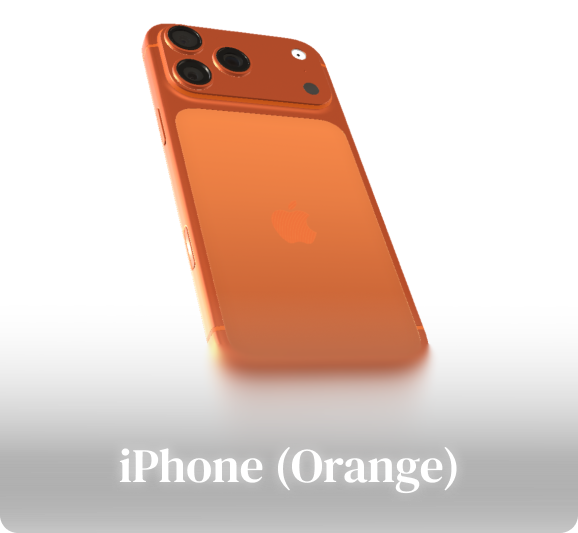
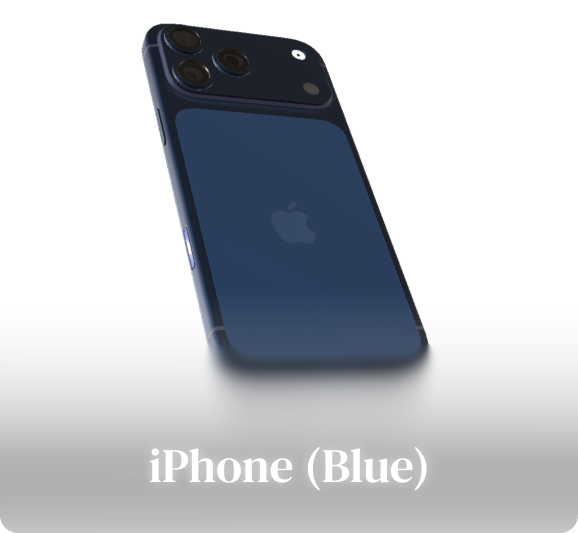
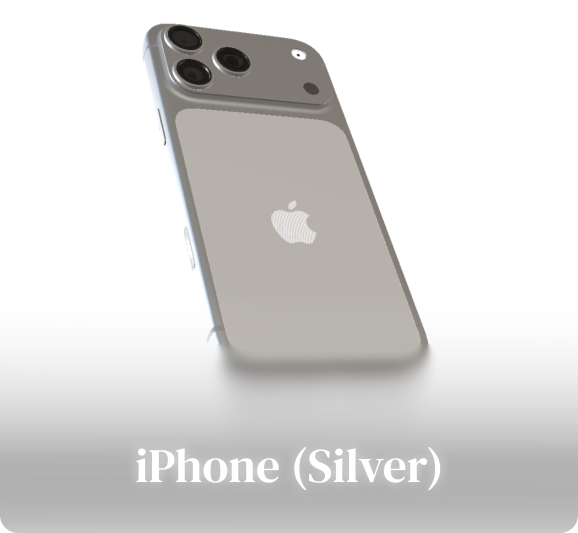
While editing, the canvas is interactive: drag the device straight on the canvas to set the selected keyframe's pose. For exact values, use the Position and Rotation sliders in the right panel; they stay in sync with the canvas.
Each diamond is a pose the device moves through. Click one to select it, and drag it sideways to retime it. Add puts a new keyframe 2s after the last one, Copy Prev copies the previous keyframe's pose, and Reset puts the device back to its starting pose (for edited presets, the preset's original pose).
Duration is how long the move into the selected keyframe takes, measured from the previous one. Ease shapes that move: In-Out starts and stops gently, In speeds up and Out slows down at the end.
Press Play next to the keyframes to watch just this shot. Edits are saved as you go; close the panel with ✕ when you're finished, and click the shot in the timeline anytime to edit it again. Presets on the timeline can be edited the same way.
Custom Shots let you go beyond presets: pose the device, drop keyframes, and Mock Mock animates everything in between.